
If you have decided to leave X (formerly Twitter), the process is straightforward but it is not instant. The platform does not offer an immediate delete button. Instead, you deactivate your account first, then X permanently erases it after 30 days if you stay logged out.
Before you start that clock, there are a few things worth doing: saving your data, canceling any subscriptions, and revoking third-party app access. Skipping these steps can leave active subscriptions charging after you leave or prevent your account from being fully deleted.
This guide walks through every step in the right order, from data backup to final deactivation, with screenshots from the actual X interface.
Deactivating vs Deleting: What X Actually Does
X does not delete accounts immediately. When you click Deactivate, the platform removes your username, display name, and public profile from view. You have 30 days to log back in and reactivate your account if you change your mind.
After 30 days of no login, X permanently erases your account and everything associated with it: tweets, likes, DMs, media uploads, bookmarks, lists, and retweets.
One important detail from X’s own deactivation page: even after your account is deleted, some information may still appear in Google or Bing search results. Search engines cache data independently and take time to update. You can submit a removal request directly to Google through their search removal tool if specific content remains indexed.
Before You Erase: 3 Things to Do First
1. Download Your X Data Archive
Once your account is permanently deleted, there is no way to recover anything from it. If you want to keep a record of your tweets, direct messages, uploaded photos, or anything else, download your archive before deactivating.
X compiles your full account history into a ZIP file. The process takes up to 24 hours before the download is available.
How to download your X data (desktop):
- Log in to X.com and click More in the left sidebar
- Go to Settings and Privacy
- Click Your Account
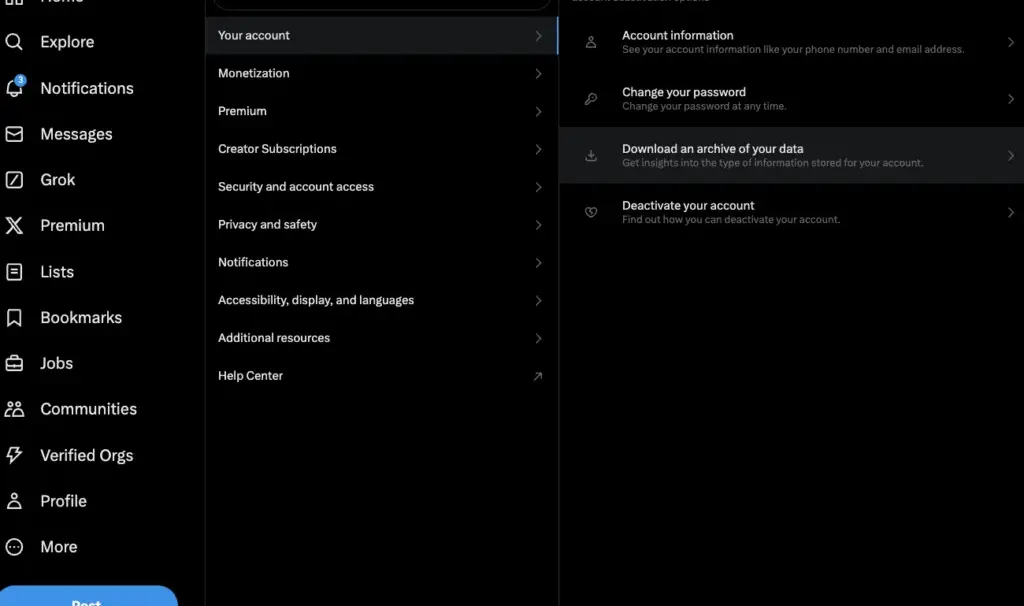
- Click Download an archive of your data
- Enter your password to confirm your identity
- X may send a verification code to your registered email or phone number. Enter it to proceed.
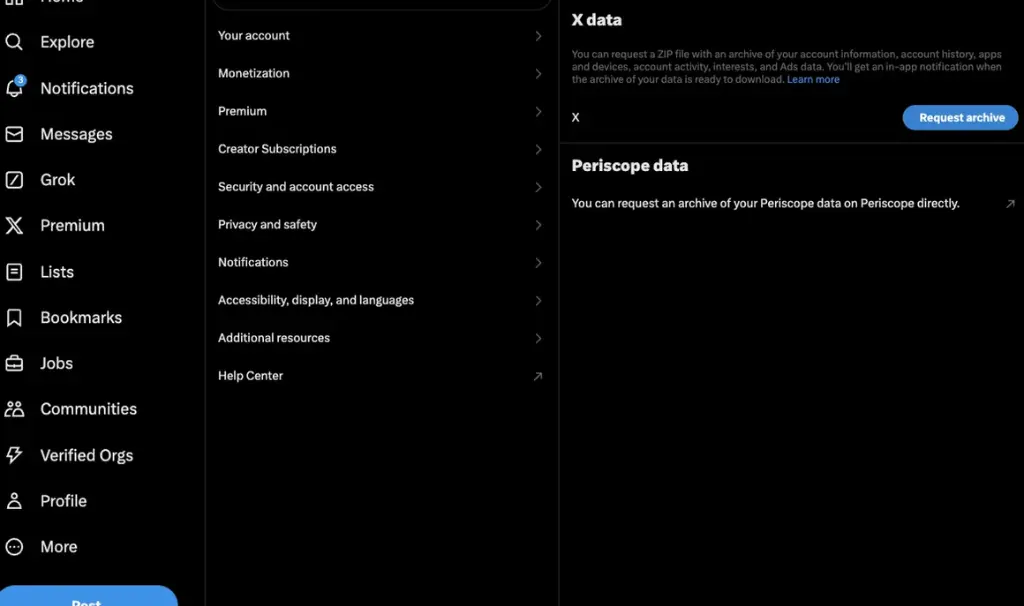
- Click Request archive under the X data section
- Wait for X to notify you (by app notification and email) that your archive is ready
- Return to the same page and click Download archive to save the ZIP file to your device
Keep this file somewhere accessible before you proceed with deactivation. According to X’s own warning on the deactivation page, download links cannot be sent to deactivated accounts, so you must complete this step while your account is still active.
2. Cancel Your X Premium Subscription
If you subscribe to X Premium (formerly Twitter Blue), you need to cancel it separately. Deactivating your account does not automatically cancel a subscription purchased through a third-party app store. You could continue being charged even after your account is gone.
If you subscribed on x.com or twitter.com directly: X will handle cancellation when you deactivate. No additional steps needed.
If you subscribed through Android (Google Play):
- Open the Google Play Store
- Tap your profile picture (top right)
- Go to Payments and subscriptions
- Tap Subscriptions
- Find X Premium and tap it
- Tap Cancel subscription and confirm
If you subscribed through iPhone (App Store):
- Open the App Store and tap your profile picture (top right)
- Tap Subscriptions
- Find X in the list and tap it
- Tap Cancel subscription and confirm when prompted
Also check any creator subscriptions you may have with individual X accounts under Settings and Privacy → Subscriptions.
3. Revoke Connected Third-Party App Permissions
Any third-party app connected to your X account, analytics tools, scheduling apps, follower auditors, social media dashboards, can continue accessing your data even after you deactivate. Some of these connections can also interfere with the deletion process and prevent your account from being permanently erased after the 30-day window.
Removing them before deactivation is cleaner.
How to revoke connected app access:
- Go to Settings and Privacy on desktop or mobile
- Click Security and account access
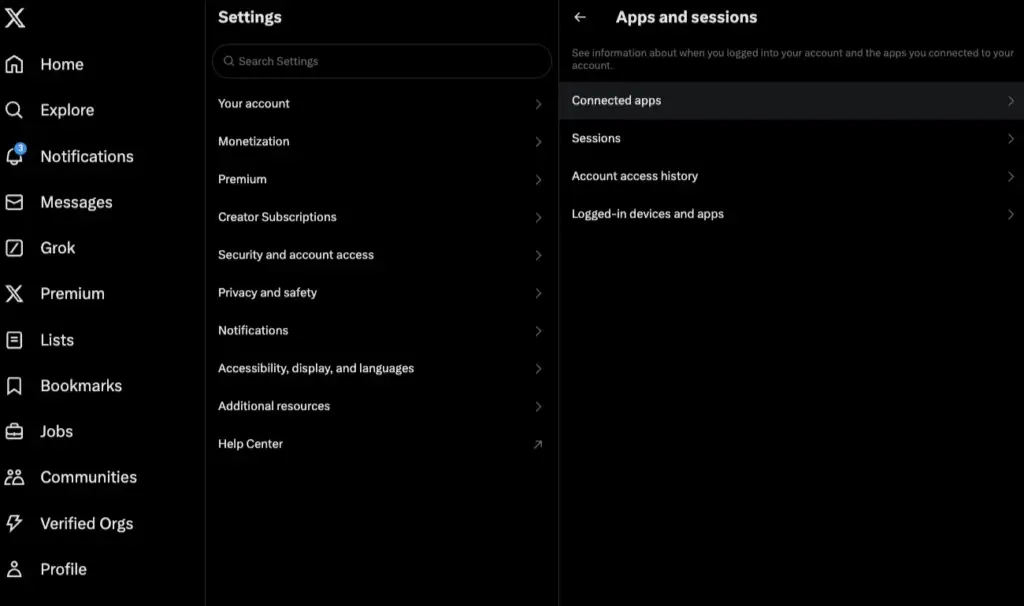
- Click Apps and sessions
- Click Connected apps to see everything with access to your account
- Open each app listed
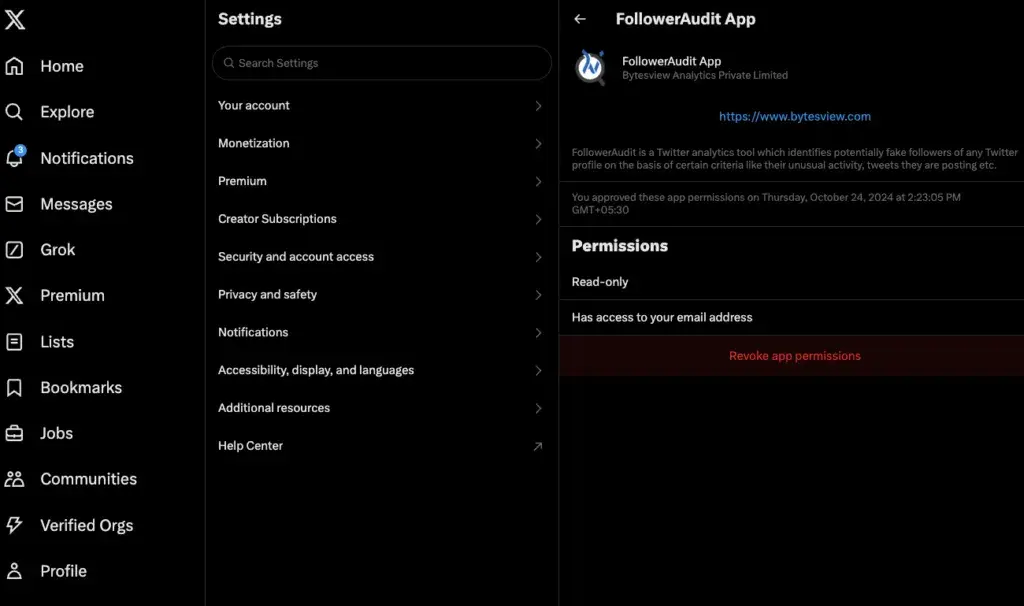
- Click Revoke app permissions on each one
- Repeat until the Connected apps list is empty
This step only takes a few minutes but it is worth doing before you start the deactivation process.
How to Erase Your X Account on Desktop
Once the three steps above are done, you are ready to deactivate.
- Log in to X.com on a desktop browser
- Click More in the left sidebar
- Select Settings and Privacy
- Click Your Account
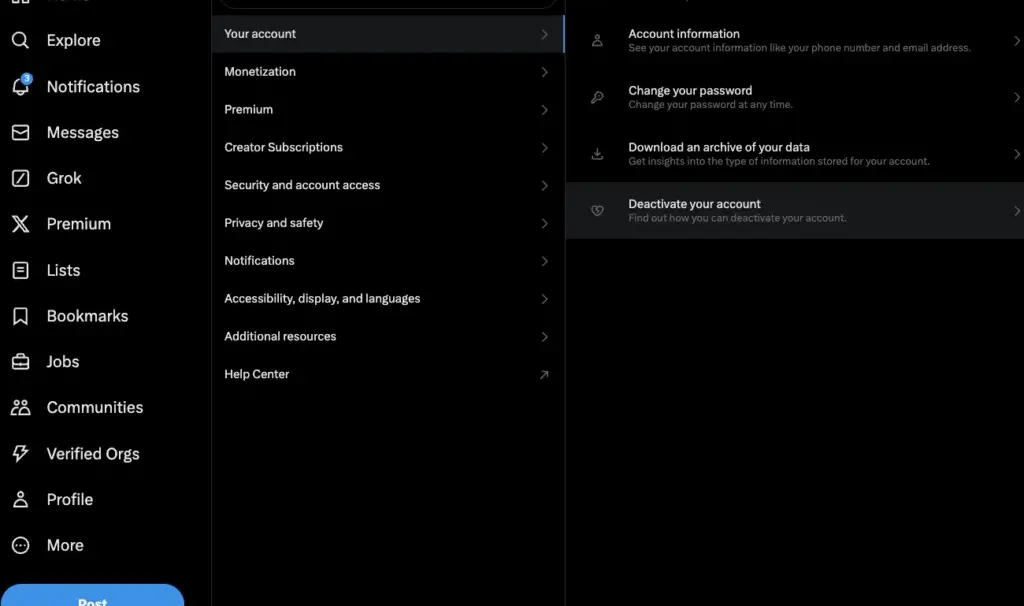
- Click Deactivate your account at the bottom of the list
- Read the deactivation information page. It confirms your profile will no longer be publicly visible and reminds you of the 30-day restoration window.
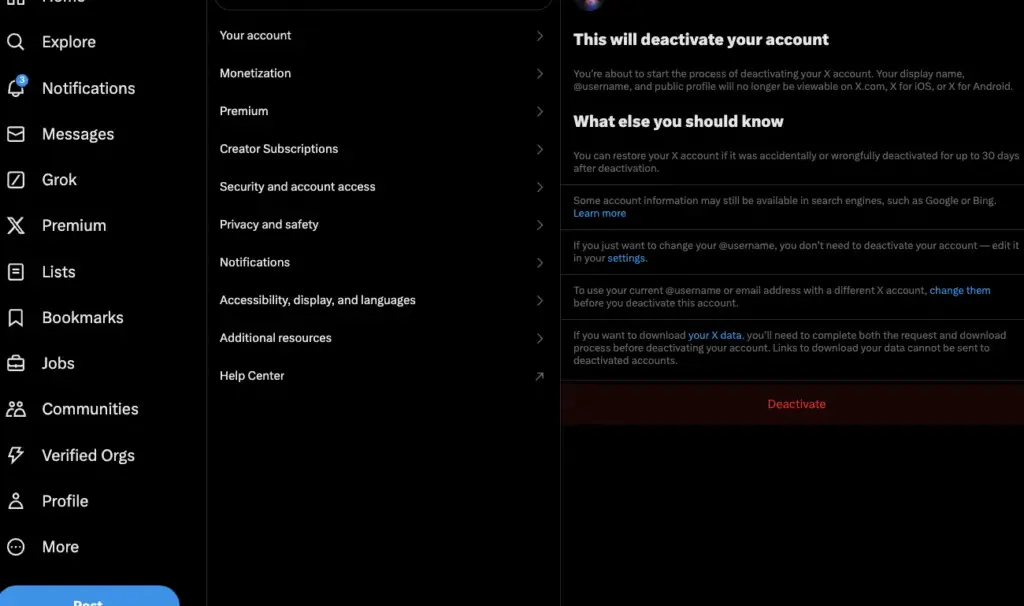
- Click the red Deactivate button
- Enter your X password when prompted and confirm deactivation
- X logs you out immediately. Your account is now deactivated.
Do not log back in for the next 30 days. Any login during this period reactivates your account and resets the process entirely.
How to Erase Your X Account on Mobile (iPhone or Android)
The mobile path is slightly different in layout but reaches the same place.
- Open the X app on your phone
- Tap your profile icon in the top left corner
- Tap Settings and Support
- Tap Settings and Privacy
- Tap Your Account
- Tap Deactivate account
- Read the confirmation screen and tap Deactivate
- Enter your password when prompted and confirm
- X logs you out. Deactivation begins.
The same 30-day rule applies on mobile: any login during this period reactivates the account.
What Happens During the 30 Days
While your account is deactivated, your profile, username, tweets, and any public-facing content are hidden from X’s platform. No one can find you on X.com or through the apps.
After 30 days without a login, X permanently deletes the account. At that point, your username becomes available for someone else to register.
A few things to keep in mind:
Search engine results. Your tweets and profile may still appear in Google or Bing for some time after deletion. Search engines operate on their own crawl schedules. Submitting a removal request to Google through Google’s Remove Outdated Content tool can speed this up for specific URLs.
Your username becomes free after 30 days. If you want to prevent someone from taking your handle, you cannot reserve it. Once the account is permanently deleted, the username is released.
Connected account logins. If you used X to sign in to other services (“Login with Twitter”), those connections will break once your account is deleted. Set up alternative login methods on those platforms before deactivating.
How to Reactivate If You Change Your Mind
Any time within the 30-day window, you can log back into your X account to reactivate it. Everything will be restored exactly as it was: followers, tweets, DMs, and all other content.
After 30 days have passed, reactivation is not possible. The account and all its data are gone permanently.
Deleting Your Data Without Closing the Account
Some people want to clear their tweet history without fully erasing the account. X does not offer a native bulk delete feature. The platform only lets you delete tweets one at a time from your profile.
If your goal is removing old content rather than leaving the platform entirely, third-party tools exist for bulk tweet deletion. These tools connect to your X account via the API and delete tweets in batches, though some require uploading your X archive file for accounts with large tweet histories.
For more on managing what appears publicly on your X profile, our guide on how to hide likes on Twitter/X covers privacy settings you can use while keeping your account active.
Frequently Asked Questions
No. Deactivation is the first step. Your account and data are hidden for 30 days. If you do not log back in during that time, X permanently deletes the account. Deactivation is reversible; permanent deletion is not.
Exactly 30 days from deactivation, as long as you do not log in during that period. After 30 days, X deletes the account and all associated data.
No. X requires the 30-day deactivation period before permanent deletion. There is no way to skip this window or request immediate deletion.
X removes all your tweets, likes, DMs, retweets, bookmarks, and media from its database after permanent deletion. Some content may remain cached in search engines temporarily.
Two common reasons: you or someone with access logged in during the 30-day period, which reactivated the account, or a third-party connected app accessed your account. Revoking all app permissions before deactivating prevents the second issue.
You need access to either x.com in a mobile browser or the X app on a phone. There is no alternative deletion method. If you have forgotten your password, use the “Forgot password” option to regain access before deactivating.
Only if you subscribed directly through x.com or twitter.com. Subscriptions purchased through the Google Play Store or Apple App Store must be canceled separately through those stores.
No. Once the account is permanently deleted, your username is released and becomes available for anyone else to register. There is no way to reserve or hold a username after account deletion.

Alex Bennett is an entrepreneur whose practical tips have helped thousands improve their careers and grow with confidence.